Running Ollama with NVIDIA GPU inside WSL (Ubuntu) – Step-by-Step Guide
Running large language models locally with GPU acceleration inside WSL2 is not only possible—it’s surprisingly efficient once properly configured. This guide walks through a working setup using Ubuntu, NVIDIA GPU passthrough, and Ollama.
🧩 Target Setup
- Windows host with NVIDIA GPU
- WSL2 (Ubuntu)
- GPU passthrough via WSL
- Ollama using GPU acceleration
1. Prepare Windows Host
Check Windows Version
Ensure you’re on a supported version:
winverRecommended:
- Windows 11 (25H2+)
Enable WSL2
wsl --install
wsl --set-default-version 2Install NVIDIA Driver (with WSL Support) on your Windows machine
Install a current NVIDIA driver that supports WSL CUDA.
Verify:
nvidia-smiIf this fails, stop here—GPU passthrough will not work.
2. Prepare Ubuntu (WSL)
Start WSL:
wslUpdate packages:
sudo apt update && sudo apt upgrade -y3. Verify GPU inside WSL
nvidia-smi -L
GPU 0: NVIDIA GeForce RTX 4070 Ti SUPER (UUID: GPU-0122fdb1-cb26-cf9a-8c28-675c70ee828d)

nvidia-smi
Wed Mar 18 16:02:22 2026
+-----------------------------------------------------------------------------------------+
| NVIDIA-SMI 595.54                 Driver Version: 595.79         CUDA Version: 13.2     |
+-----------------------------------------+------------------------+----------------------+
| GPU  Name                 Persistence-M | Bus-Id          Disp.A | Volatile Uncorr. ECC |
| Fan  Temp   Perf          Pwr:Usage/Cap |           Memory-Usage | GPU-Util  Compute M. |
|                                         |                        |               MIG M. |
|=========================================+========================+======================|
|   0  NVIDIA GeForce RTX 4070 ...    On  |   00000000:01:00.0  On |                  N/A |
|  0%   38C    P8             17W /  285W |    1032MiB /  16376MiB |     11%      Default |
|                                         |                        |                  N/A |
+-----------------------------------------+------------------------+----------------------+Expected:
- Your GPU is listed
- Driver info is visible
4. (Optional) Install CUDA Toolkit
sudo apt install -y nvidia-cuda-toolkitVerify:
nvcc --version5. Install Ollama
⚠️ Required Dependency for Ollama
Before installing Ollama, install zstd (this is required and often missing):
sudo apt-get install -y zstdDownload and Install Ollama
curl -fsSL https://ollama.com/install.sh | sh6. Verify Ollama Installation
ollama --version7. Run Your First Model
ollama run llama3🔍 Verify GPU Usage
In a second terminal:
nvidia-smi
Wed Mar 18 16:08:13 2026
+-----------------------------------------------------------------------------------------+
| NVIDIA-SMI 595.54                 Driver Version: 595.79         CUDA Version: 13.2     |
+-----------------------------------------+------------------------+----------------------+
| GPU  Name                 Persistence-M | Bus-Id          Disp.A | Volatile Uncorr. ECC |
| Fan  Temp   Perf          Pwr:Usage/Cap |           Memory-Usage | GPU-Util  Compute M. |
|                                         |                        |               MIG M. |
|=========================================+========================+======================|
|   0  NVIDIA GeForce RTX 4070 ...    On  |   00000000:01:00.0  On |                  N/A |
|  0%   58C    P2            240W /  285W |    6331MiB /  16376MiB |     91%      Default |
|                                         |                        |                  N/A |
+-----------------------------------------+------------------------+----------------------+You should see:
- A running
ollamaprocess - Increasing GPU usage (here 91%)
- Increasing GPU memory usage (here 6GB compared to 1GB in the screnshot, when we called nvidia-smi for the first time)
⚙️ Troubleshooting
Ollama uses CPU instead of GPU
Try:
export OLLAMA_USE_GPU=1Model too large
Test with a smaller model:
ollama run phiGPU not visible in WSL
- Check Windows driver again
- Ensure WSL2 is used (
wsl -l -v)
🧪 Test Ollama API
curl http://localhost:11434/api/generate -d '{
  "model": "llama3",
  "prompt": "Hello"
}'Get all running models:
curl --silent http://localhost:11434/api/ps | python3 -m json.tool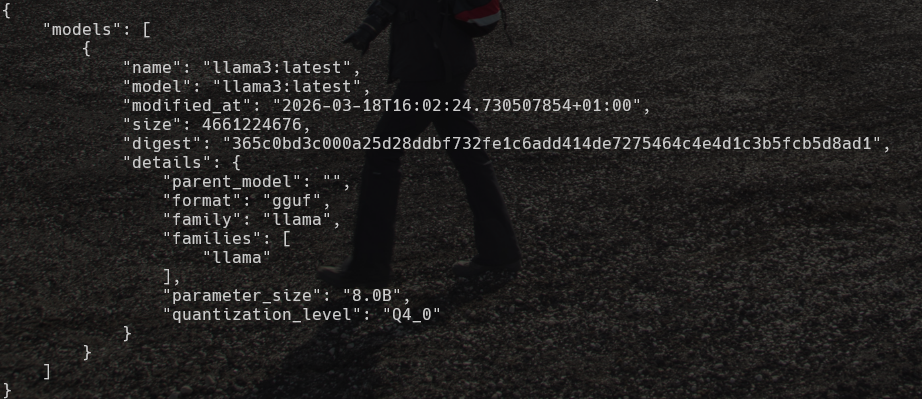
You can access ollama from the windows system, where your wsl runs by using the api. Ollama in wsl automaticall binds to 0.0.0.0.
http://localhost:11434/api/ps
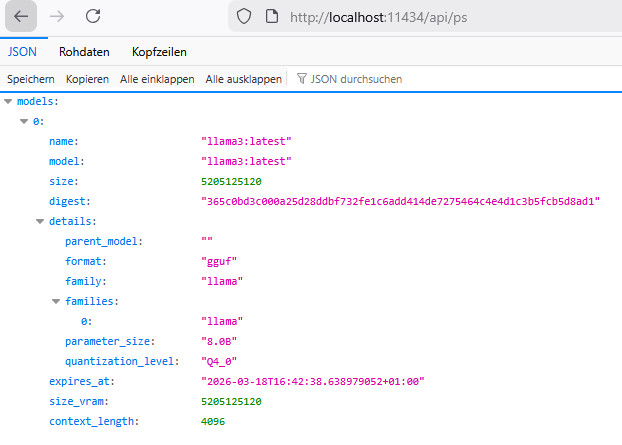
If this does not work, try to bind ollama to all interfaces:
export OLLAMA_HOST=0.0.0.0
ollama serve